 COME
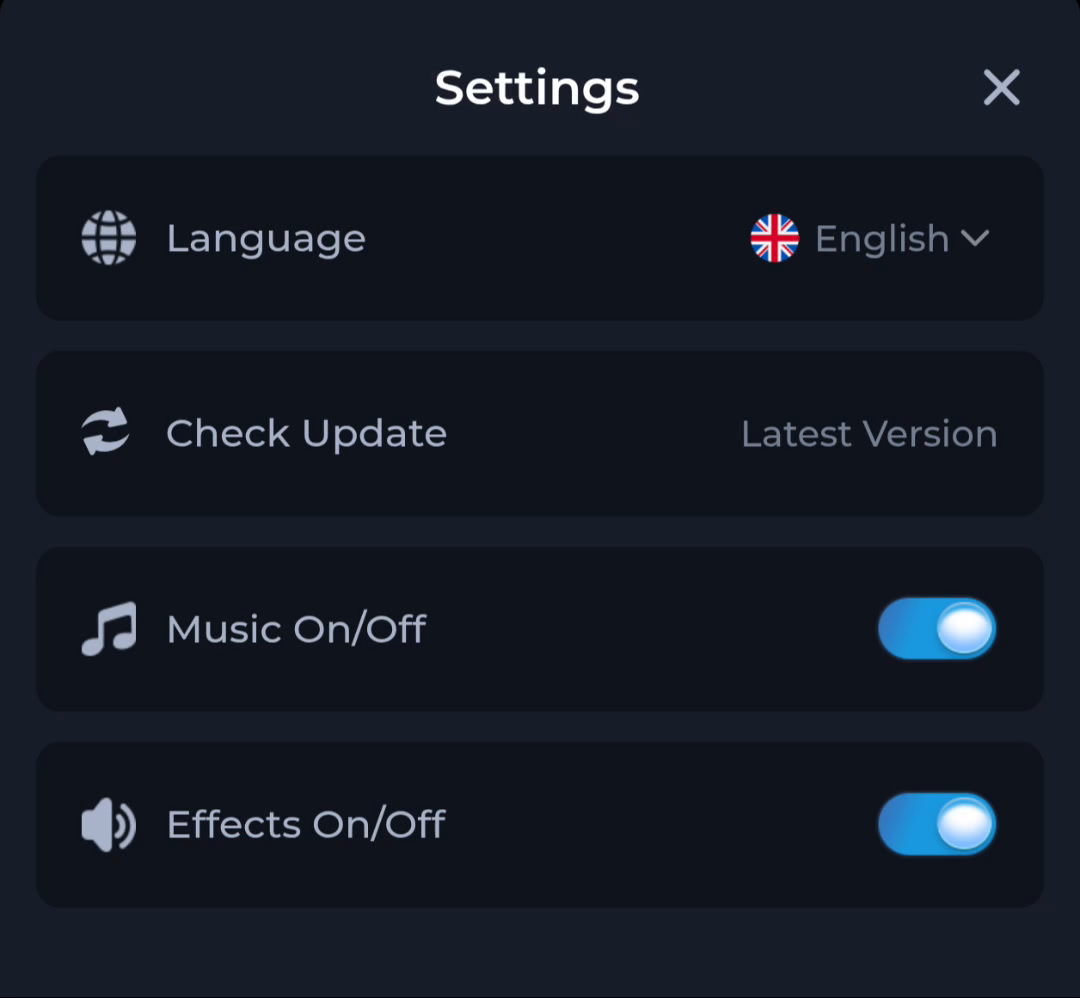
COMEClose COME Settings without signing out
Closing the Settings panel and logging out are different actions. Use the visible close control when you simply want to return from preferences to the previous app view.
Identify the control you intend
The Settings panel has a close icon beside its title. The account menu has a separate Logout entry. Read these controls by their location and purpose instead of choosing an account action to leave a panel.
Confirm the preference you changed
If you adjusted Language, Music or Effects, observe the result before closing. Closing a panel does not prove an update installed or a service request completed. Keep those tasks separate from returning to the main interface.
Before moving to another task
Keep the current screen and the action you just took in mind. A menu label helps you locate information, but account changes, download completion and support decisions each need their own result. If the interface differs, match the actual label and context rather than following a memorised screen position. For a personal service question, stay with the recognised in-app help route and keep private access details out of public posts.
A practical example
After turning Effects off, close Settings to resume browsing. Logging out would introduce an account-access step that is unnecessary for leaving the panel.
What a completed answer looks like
You return to the intended app view with the preference understood and without an unintended sign-out.
Choose another specific COME guide